


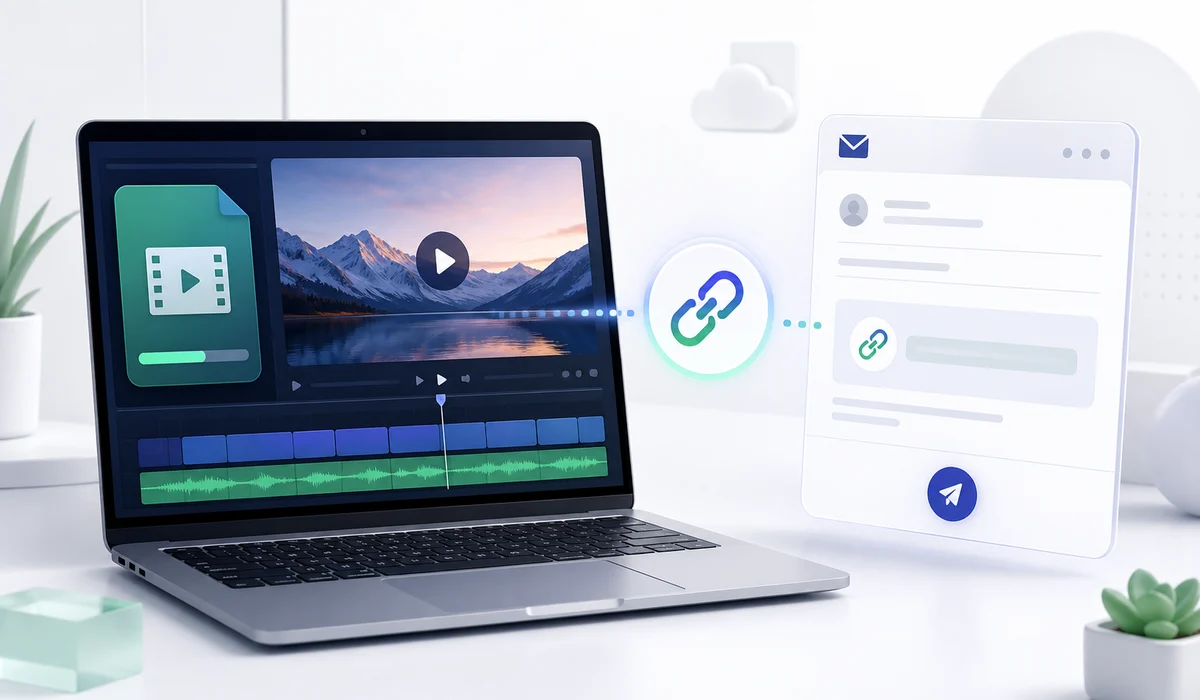
Recording a video rarely feels like a file sharing problem until you try to send it somewhere. You may have finished a client walkthrough, checked the recording, written the email, and then reached the attachment box only to find that the file is far too large.
Screen recordings are especially good at causing this surprise. Six or seven minutes may not sound like much, but clear text, a larger video size, and enough quality to keep menus readable can leave you with a file that email was never going to handle comfortably.
At that point, there is no rule saying the video itself has to sit inside the message. You can keep the recording online and let the email carry a link to it.
Email attachment limits arrive quite quickly with video
Personal Gmail accounts currently allow up to 25 MB in attachments. If the total goes beyond that limit, Gmail automatically removes the large attachment and adds it to the message as a Google Drive link. Google is effectively moving the large file out of the email while keeping a way for the recipient to reach it. (Google Help)
Outlook.com has a 25 MB file attachment limit as well. Microsoft provides OneDrive as another way to share larger files rather than trying to push them through a normal attachment. (Microsoft Support)
Yahoo Mail documents the same 25 MB total limit for attached files in a single incoming or outgoing message. (Yahoo Help)
| Email service | Current documented limit | What happens when you need to send more |
|---|---|---|
| Gmail personal account | 25 MB | Gmail can place the larger file in Google Drive and add a link |
| Outlook.com | 25 MB | A larger file can be shared through OneDrive |
| Yahoo Mail | 25 MB total | You need to reduce the attachment size or share the file another way |
These limits sound reasonable until the file in front of you is a video. A photograph or a document may sit comfortably below 25 MB, while an ordinary screen recording can cross it without looking particularly large on your computer.
That is why the first instinct of repeatedly compressing the video is not always useful.
Take a 150 MB screen recording as an example
Say you have recorded a dashboard walkthrough for a client. The menus are readable, the mouse movements are clear, and the final MP4 ends up at about 150 MB.
Gmail is not going to accept that as an ordinary attachment on a personal account because it is far above the current 25 MB limit. (Google Help)
You could keep reducing the video until the file becomes much smaller. That works when there is room to reduce the quality without affecting anything important. A screen recording is not always forgiving, though. Tiny labels, numbers, settings, and menu text can become noticeably harder to read once the video has been reduced too aggressively.
Another possibility is much less dramatic. Leave the 150 MB recording as it is, upload it somewhere that can host the video, and put the resulting URL in the email.
The message might simply say:
I recorded the dashboard changes we discussed. The walkthrough is about six minutes long and you can watch it here.
The email stays small. The recording does not need to be squeezed under an attachment limit just to reach the other person.
A video sitting on your computer does not have a usable web link
This sounds obvious once explained, but it causes plenty of confusion.
A video might be located at something such as C:\Videos\client-demo.mp4 on a Windows computer. That address tells your own computer where the file lives. Sending it to a client does not suddenly make the video available from their computer.
The file has to be placed somewhere online before another person can open it through a normal web address.
If the recording is already saved on your computer or phone, a video to link tool can handle that part. With Media2URL, you upload a supported video file and receive URLs that can be copied after the upload finishes.
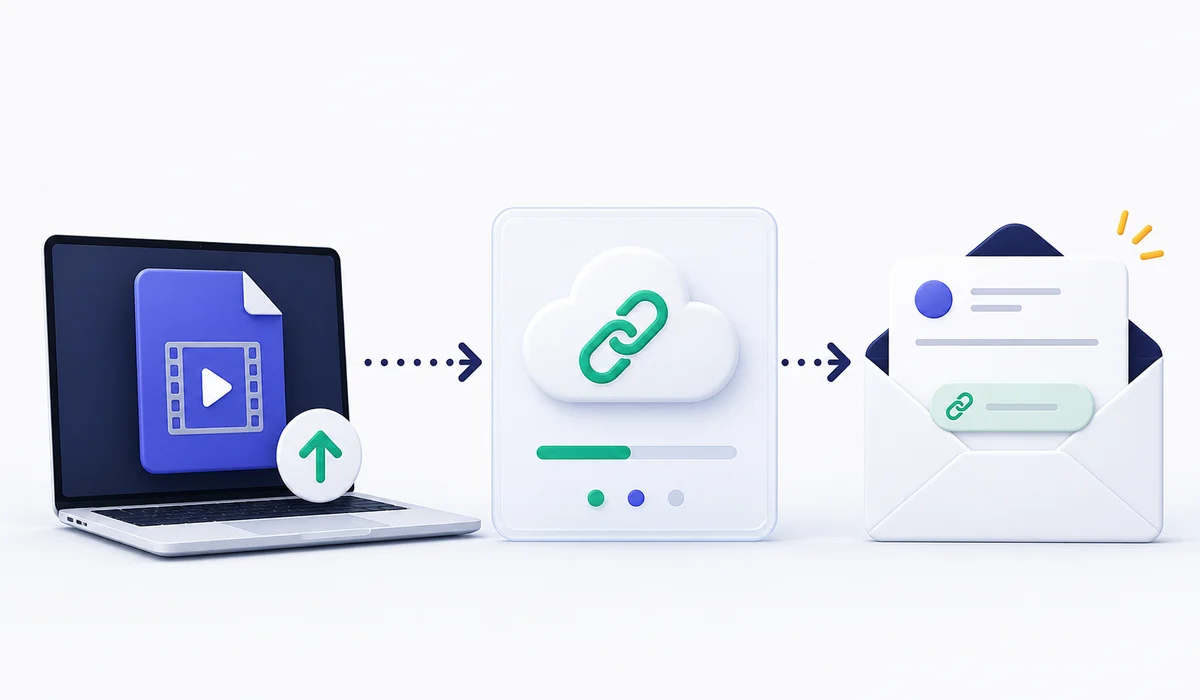
This is the point where the email problem becomes much simpler. You are no longer trying to make the inbox carry the video. You are giving the recipient an address where the recording can be reached.
The URL you send depends on what the recipient needs
Not every video URL does the same job.
Sometimes you want a normal page where a person can open the recording in a browser. In another situation, a website or application may specifically need the actual video file URL.
Media2URL separates these uses by providing a video URL and a share page after supported uploads. If you are sending a walkthrough to a client, the page intended for viewing will usually make more sense because the person is there to watch something. A direct file address becomes useful when another tool or website expects the video resource itself.
This distinction is worth understanding before copying whichever URL happens to appear first. The direct URL and share page guide goes deeper into how those two types of links behave.
For a simple email, you can ignore most of the technical side once you know which result opens the video in the way you want.
Compression still has its place
There is no need to turn this into a choice where links are good and compression is bad. Sometimes trimming or reducing a video is exactly what you should do.
Imagine a 28 MB recording with ninety seconds of dead time at the beginning. Cutting that unused section may bring the file comfortably within an email limit while making the video better to watch anyway.
A 300 MB demonstration is a different situation. Trying to reduce it all the way to the size of a normal email attachment may mean making compromises that have nothing to do with what the viewer needs.
I would make the decision based on the recording itself rather than chasing a particular number.
| Situation | What I would consider |
|---|---|
| The file is only slightly above the email limit | Trim unnecessary footage or make a modest reduction |
| The recording is several times larger than the limit | Hosting it and sending a URL is usually simpler |
| Small text needs to stay readable | Avoid reducing the video so far that the demonstration becomes difficult to follow |
| The recipient only needs to watch the recording | A viewing link is often more convenient than transferring the whole file through email |
If the video could genuinely benefit from trimming or compression, Media2URL also has video tools for supported workflows. The purpose should still be improving the file or making it practical to use, not reducing quality simply because email has an attachment ceiling.
What about putting the video player directly inside the email?
This looks cleaner in theory. The recipient opens the message, presses play, and never leaves the inbox.
Real email clients make that more complicated.
Mailchimp says most email clients cannot display normal embedded video content and may remove the video code. Its video block works around this by showing a thumbnail with a play icon. When somebody clicks it, the actual video opens in a browser window. (Mailchimp)
Wistia uses a similar approach for email. Its email embed places a clickable video thumbnail in the message, while the recording itself is viewed elsewhere. Wistia notes that most email clients still do not support true video playback inside email. (Wistia)
So a video link is not only something you use after Gmail rejects an attachment. The same basic idea is already part of how established video and email marketing platforms handle video.
A plain text link is often enough
You do not need to turn every client email into a marketing campaign.
For ordinary work, the clearest message may be something like this:
I recorded a short walkthrough of the checkout problem. It shows the error at around 2:10. You can watch the recording here.
Then add the video link below it.
The extra sentence does more useful work than a fancy button with no explanation. The recipient knows what they are about to open and why you sent it.
A clickable thumbnail can be useful in newsletters or marketing emails because the play icon immediately communicates that there is a video behind the image. Mailchimp uses this approach in its video content block, while Wistia also creates thumbnails that link out to the hosted recording. (Mailchimp)
For a one to one client conversation, I would normally choose clarity over decoration.
Test the URL like you are the person receiving it
There is an annoying failure that is easy to miss.
You upload the recording, open the URL, and everything works. The client opens the same link ten minutes later and gets a permission message.
The reason may simply be that your browser is already signed into the account that owns the file.
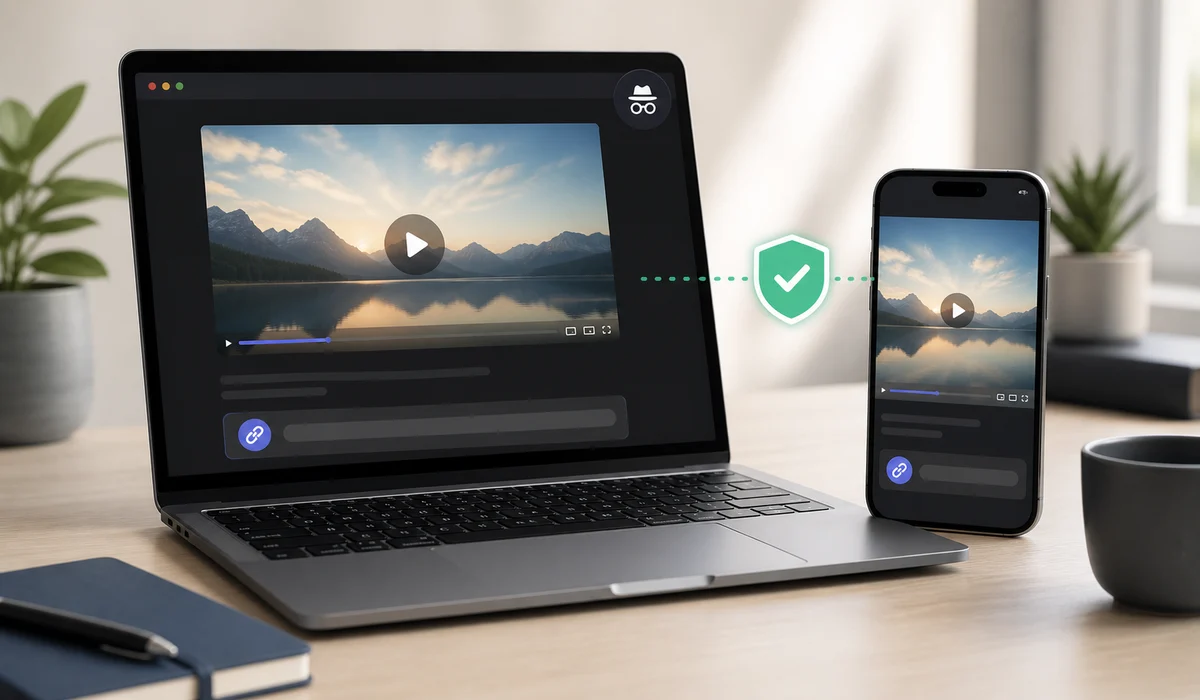
Before an important video goes out, I like the private browser window test because it removes much of that hidden account context. Paste the link into a private window and see whether it opens the way you expect. Google itself deals with a similar issue when sharing Drive files through Gmail by checking whether the recipients have access before the message is sent. (Google Help)
A phone check can also be worthwhile if the person is likely to read the email on mobile. You do not need to inspect every screen size on earth. You just want to avoid sending a page that is technically accessible but awkward to use on the device your client is probably holding.
Watch the recording once more before sharing it
A screen recording can reveal more than the thing you meant to demonstrate.
Notifications appear. Another browser tab is visible for half a second. A customer name sits in the corner of a dashboard. None of those details feel important while recording because your attention is somewhere else.
Once a video has a shareable URL, it becomes much easier to send around. That is useful, but it also makes the final review more important.
For anything involving client information, internal dashboards, account data, or material that should stay within a particular group, check what the hosting option actually allows before choosing the most convenient link.
Media2URL has a separate explanation of public links and private links if the difference is relevant to what you are sending.
A public product demo and an internal account walkthrough do not need the same access setup. Treating them as if they do can either expose something unnecessarily or make a harmless public video harder to open than it needs to be.
Video links work especially well for certain kinds of email
Client walkthroughs are probably the most obvious use. A designer can show a page revision. A developer can demonstrate a bug fix. An agency can walk through campaign changes without making the client download a large attachment before they understand what it contains.
Support teams have a similar reason to use them. Some problems take ten paragraphs to describe but about forty seconds to show on screen. Keeping that recording outside the email lets the written conversation stay readable.
Remote work creates plenty of these situations too. A recorded status update can be watched when the other person is free, and the same URL can remain part of the discussion without another copy of the video being attached every time someone replies.
Product demonstrations fit naturally as well. The prospect usually wants to see the feature, not store the MP4 in their inbox.
There are still times when I would attach the video
If the recording is 8 MB and the person specifically asked for the file, uploading it elsewhere first may only add unnecessary work.
Attachments are also useful when the recipient needs to save the original file directly and the email system comfortably accepts it.
Workplace rules can change the answer too. Some companies do not want internal material placed on external hosting services, even when the link would be more convenient. In that case, the approved company storage or email system takes priority.
What the person needs after receiving the message is usually more useful than a fixed rule.
If they only need to watch a six minute explanation, a link is easy.
If they need the source video for editing tomorrow morning, make sure the method you choose actually gives them the file in the form they need.
A few small details can prevent frustrating replies
One is the link itself. Open it before sending.
Another is the sentence around it. “Here is the link” tells the recipient almost nothing, while “Here is the five minute recording showing the checkout error on mobile” gives immediate context.
It is also worth looking at the file after any compression. There is little benefit in getting under 25 MB if the important text has become unreadable.
Finally, think about access before the message leaves your inbox. A video that should be available only to a client should not accidentally end up on a link that can be passed around without any consideration of who can open it.
None of these checks takes very long. They mostly prevent the sort of additional message nobody wants to send: “Sorry, try this link instead.”
So, should you attach the video or send a link?
Start with the actual file.
If it already fits easily inside the email limit and attaching it is useful to the recipient, there is nothing wrong with sending it normally.
When the recording is just a little too large, a sensible trim or modest reduction may solve the problem without changing how you share it.
Once you are looking at a video many times larger than the attachment limit, the decision usually becomes easier. Put the recording somewhere it can be reached online and send the recipient the URL instead.
That is also what Gmail effectively does when a personal account goes beyond its 25 MB attachment limit. The large file moves to Drive and the message carries a link. (Google Help)
The video and the email can do separate jobs
An email is good at giving somebody context. It tells them why you recorded something, what to look for, and what you need from them after they watch it.
The video has a different job.
Trying to force both into one large message is where the trouble often starts.
Once the recording has a usable web address, the email can stay focused on the conversation. The recipient clicks when they are ready, and you do not have to destroy the quality of a perfectly useful video just to make an attachment box accept it.
Sources and further reading
These sources cover the attachment limits, link handoff, and email video behaviour discussed above.
Attachment limits and Drive links
- Gmail Help, attachment size limits
- Outlook.com Support, sending limits
- Yahoo Mail Help, message size limits
- Gmail Help, Drive attachments